
The Deployment of Django in windows + sqlserver enviroment
The enviroment is as following:
Python 3.7 + DJango 2.2 + Sql server 2016 + IIS
Setup sql server
Install sql server as usual
create sql user for django application and set up firewall to allow incoming traffic for 1433 (sql server port)
Install Python 3.7
Install Python 3.7 with pip,
import:
Python should be install directly under c driver and the installation folder should not have any empty space. Something as c:\python37
pip install -r requirements.txt

pip install django-pyodbc-azure # important to connet to sql server
the settings look like this:
DATABASES = {
    'default': {
        'ENGINE': 'sql_server.pyodbc',   # 数据库引擎
        'NAME': 'mdm',  # 数据库名,先前创建的
        'USER': 'bdc_xxadmin',     # 用户名,可以自己创建用户
        'PASSWORD': 'Qwer1234',  # 密码
        'HOST': 'CPDSCN01',  # mysql服务所在的主机ip
        'PORT': '1433',

        'OPTIONS': {
            'driver': 'SQL Server Native Client 11.0',
            'collation': 'Chinese_PRC_CI_AS',
        },

    }
}

# set this to False if you want to turn off pyodbc's connection pooling
DATABASE_CONNECTION_POOLING = False
important:
migrations folder must keep init.py file, otherwise makemigrations will yield “no change detected”
if the folder is empty out of whatever reason, use:
python manage.py makemigrations --empty app_name #or
python manage.py migrate --fake app_name #fake initial table
migrate some data
dumpdata for certain models
./manage.py dumpdata myapp2.my_model myapp2.my_model myapp1 > model.json # dumpdata
./manage.py loaddata model.json # import data
configure IIS
Install IIS from windows program, enable cgi under development component in order to have fastcgi settings
pip install wfastcgi # install wfastcgi
wfastcgi-enable # cmd must be run as administrator
Option 1:
use web.config in the root folder of django app
enable web.config in IIS:
%windir%\system32\inetsrv\appcmd unlock config -section:system.webServer/handlers #其中的 handlers 是错误信息中红字显示的节点名称。
如果modules也被锁定,可以运行
%windir%\system32\inetsrv\appcmd unlock config -section:system.webServer/modules
use the following web.config
<?xml version="1.0" encoding="UTF-8"?>
<configuration>
  <system.webServer>
    <handlers>
      <add name="Python FastCGI"
           path="*"
           verb="*"
           modules="FastCgiModule"
           scriptProcessor="C:\Users\KaiyiLin\.virtualenvs\LMS_Base\Scripts\python.exe|C:\Users\KaiyiLin\.virtualenvs\LMS_Base\Lib\site-packages\wfastcgi.py"
           resourceType="Unspecified"
           requireAccess="Script" />
    </handlers>
  </system.webServer>

  <appSettings>
    <!-- Required settings -->
    <add key="WSGI_HANDLER" value="django.core.wsgi.get_wsgi_application()" />
    <add key="PYTHONPATH" value="C:\Users\KaiyiLin\Arbeit\06-DSMS\LMS_Base" /> # modify

    <!-- Optional settings -->
    <add key="WSGI_LOG" value="C:\Users\KaiyiLin\Arbeit\06-DSMS\LMS_Base\log\lms_base.log" /> # modify
    <add key="WSGI_RESTART_FILE_REGEX" value=".*((\.py)|(\.config))$" />
    <add key="APPINSIGHTS_INSTRUMENTATIONKEY" value="__instrumentation_key__" />
    <add key="DJANGO_SETTINGS_MODULE" value="Mxonline3.settings" /> modify
    <add key="WSGI_PTVSD_SECRET" value="__secret_code__" />
    <add key="WSGI_PTVSD_ADDRESS" value="ipaddress:port" />
  </appSettings>
</configuration>
under static and media folder use the web.config
<?xml version="1.0" encoding="UTF-8"?>
<configuration>
  <system.webServer>
    <!-- this configuration overrides the FastCGI handler to let IIS serve the static files -->
    <handlers>
    <clear/>
      <add name="StaticFile" path="*" verb="*" modules="StaticFileModule" resourceType="File" requireAccess="Read" />
    </handlers>
  </system.webServer>
</configuration>
add virtual folder for static and media folder
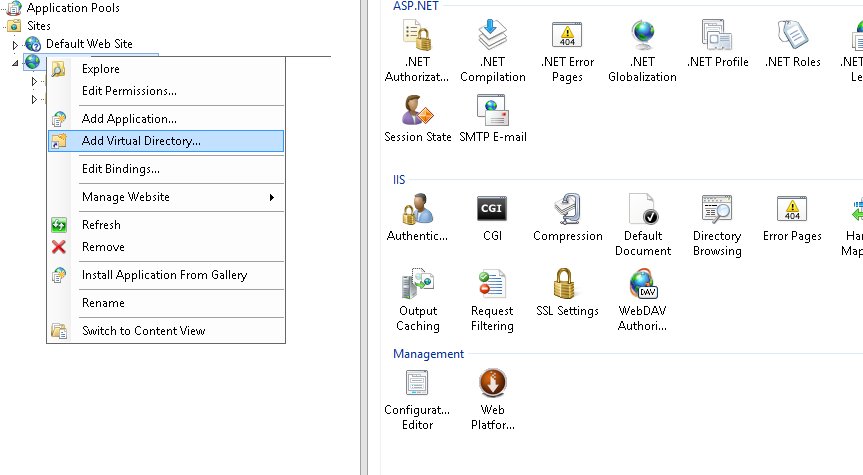
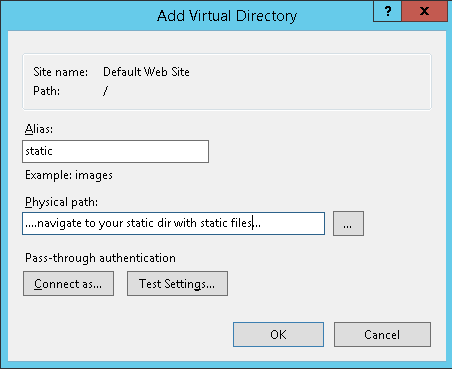
option 2:
Add fastcgi settings:
機器首頁 -> IIS -> FastCGI 設定 這應該要有 python.exe,如果沒有點選右側新增應用程式。 important 如果又iis端口被占用的错误: Check using netstat -aon or netstat -aon | findstr 0.0:80 in a command prompt to see which Process Id is LISTENING to port :80 and then watch for that Process Id (PID) in Task Manager with view->select columns-> process id checked. End that process, restart IIS and you are done. (Note: if you have Skype installed, try exiting that process first.) In a modern Task Manager, you need to go on the Details tab to search for the PID. Or, as mentioned by @Nikita G in the comments, you can use this command to find the task from your command prompt:
完整路徑為python執行檔位置如:
新增網站
網站設定頁面中 -> IIS -> 處理常式對應 -> 新增模組對應
要求路徑: *,模組:FastCgiModule,執行檔:
要求限制 -> 取消勾選 只有當要求對應到下列項目時才啟動處理常式
IIS manager 可能會問你是否要建立 fastcgi 應用程式,選否
fastcgi setting 至少加三个环境变量
脚本及python路径中不能有空格,不能有.等特殊字符
<add key="WSGI_HANDLER" value="django.core.wsgi.get_wsgi_application()" />
            <add key="PYTHONPATH" value="<網站資料夾路徑>" />
            <add key="DJANGO_SETTINGS_MODULE" value="<Django App>.settings" />
tasklist /FI "PID eq 123"